A-2 Technologies Software Registration
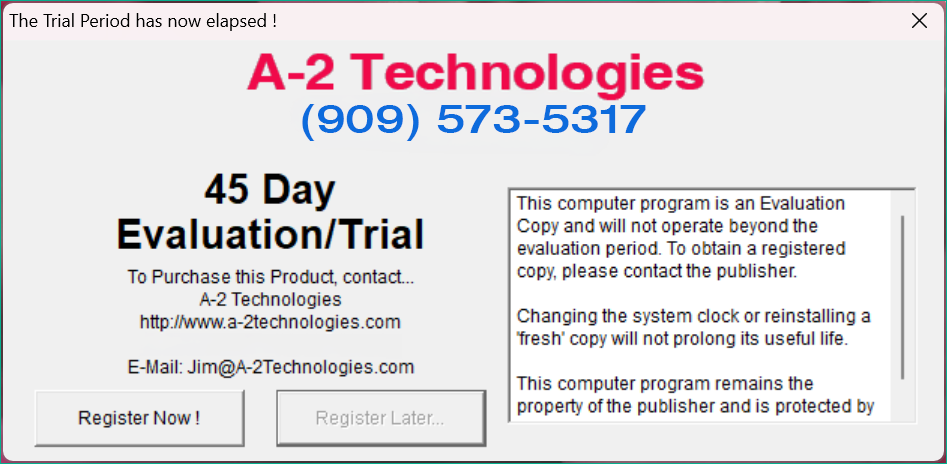
When you first run the software, the message shown below will appear. This indicates that the software has not yet been registered and that the 45-day trial period has begun.
This screen may also appear if the software is accessed from a different user account on the same computer.
Important: The registration process must be completed separately for each software program you have purchased.
For example, if you purchased the Inventory Program, you must run that program and complete the steps below. If you have purchased additional software, this process must be repeated for each application.
Only submit registration forms for the software you have purchased. Registration codes are unique to each application and will not work across different programs.
If you select “Register Later…”, the software will continue in evaluation mode. You may use the software for up to 45 days before registration is required. The number of remaining days will be displayed in the program’s title bar.
If you have already purchased the software—or plan to purchase it through your bowling parts supplier—please proceed with the registration steps below.
Note: Registration codes are tied to the specific computer where the registration form is generated. You must create and submit the registration form from the same PC where the software will be installed. Codes issued for one computer will not work on another.
To begin, click “Register Now!”. The message shown below will then appear.
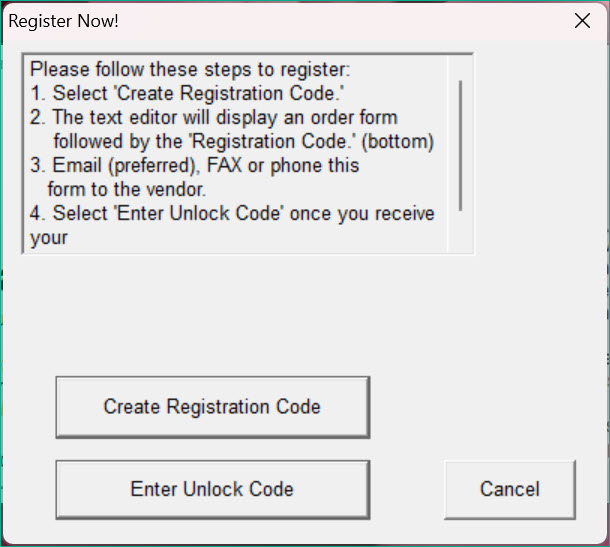
- Click “Create Registration Code” to open the registration form.
- Complete the form and save it as submit.txt on your computer.
- Send the file along with your proof of purchase.
- You will receive an unlock code after verification.
- Click “Enter Unlock Code” and enter the code to activate the software.